
Cyberduck Setup and Usage
Cyberduck is a free, open-source SFTP client used to securely transfer files between your computer and a remote server. It supports drag-and-drop uploads, bookmarked connections, and large file transfers across Windows and macOS.
Downloading and Installing
Section titled “Downloading and Installing”- Navigate to the Cyberduck download page here.
- Download the latest installer for your OS, the name should be something like:
Cyberduck-Installer-x.x.x.xxxxx.exe - Run the downloaded file
- If prompted, click
Yeson the User Account Control prompt. - Wait for the installation to complete, Cyberduck installs silently with no additional steps required.
Using Cyberduck
Section titled “Using Cyberduck”- Navigate to your server on the panel.
- Go to settings, and view the SFTP details.
- Click
Open Connectionin the top-left of Cyberduck. - Fill out the details in the connection window.
- Copy the server address, and paste it into the
Serverfield on Cyberduck. - Copy the username, and paste it into the
Usernamefield. - Enter your password - this is the same password you use to login to the panel
- Leave the port blank - this will be filled in automatically
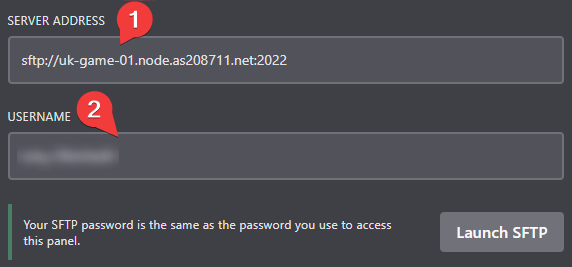
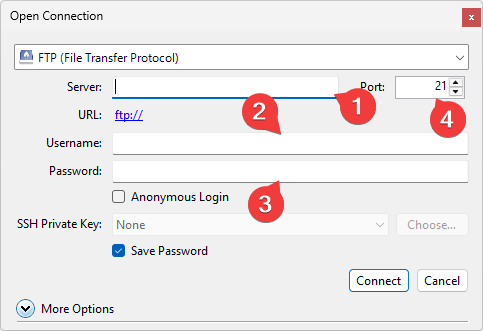
- Copy the server address, and paste it into the
- Click
Connect. If prompted with an unknown host warning, clickAllowto trust the server and continue. - You should now be connected to your server. The remote server files will be displayed in the main window.